
pibot_cnc_laser_series:v588_ultra:check_jumpers:start
2.2 Check Jumpers and Power On
Check List · Step 2 of 12 · Check the default jumpers, insert optional modules, then power on safely
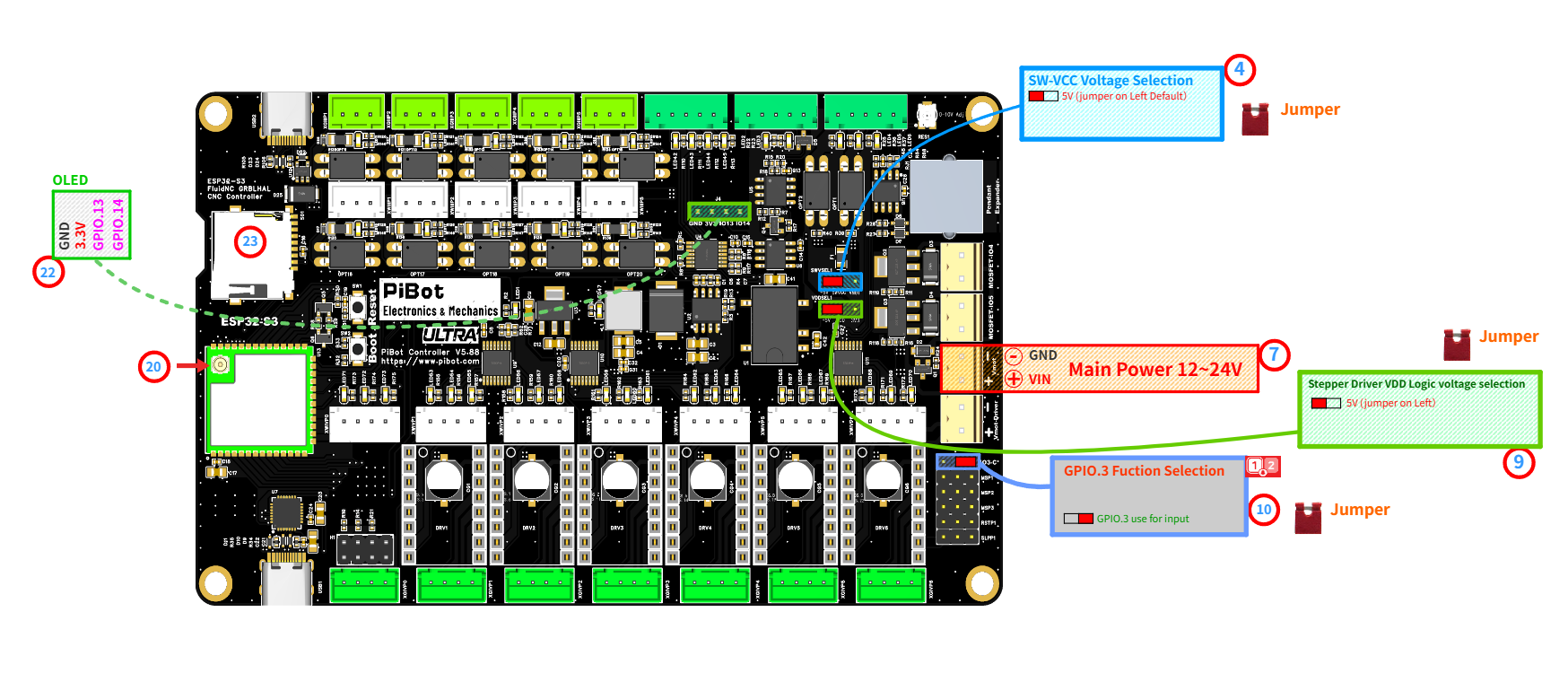
Use the red numbered marks in this image to find each connector, jumper, and module position.
⚠️
SAFETY FIRST: Please disconnect all external peripherals before starting the inspection process.
🎯 Objective
Before the first power-on, confirm that the factory default jumpers are installed in the correct positions. Then insert the antenna and optional modules, connect the main power input, and check the basic power-on result.
1
Initial Jumpers
💡 Only 3 jumper caps are installed by default from the factory.
- 4SW-VCC Voltage Selection: select 5V.
- 9Stepper Driver VDD Logic Voltage Selection: select 5V.
- 10GPIO.3 Function Selection: select GPIO.3 use for input.
2
Module Insert
- 20Insert the Antenna.
- 22Insert the OLED (optional).
- 23Insert the TF Card / microSD Card (optional).
3
Power On
- 7Connect 12V or 24V power to Main Power / Vmot-main.
- ⚠️ Do not reverse polarity.
- Default: 24V recommended.
- Switch on power.
✓
Expected Results
- The 5V power indicator LED should illuminate.
- 22The OLED screen should display information/data (if firmware installed).
⚠️
If the 5V LED does not turn on, switch off power immediately and re-check the input voltage, polarity, and jumper positions before continuing.
pibot_cnc_laser_series/v588_ultra/check_jumpers/start.txt · Last modified: by admin